


With more folks working from home, we have to find new and innovative ways to collaborate on creative projects. Adobe has made things a little easier with its new “Send For Comments” Feature in Acrobat Pro DC.
This new feature allows easy and organized collaboration on any PDF document. And, unlike previous collaboration tools in Adobe, collaborators can add comments, suggestions and edits right from their browser. Collaborators no longer need to have Adobe Reader installed, nor do they need an account. The “Send For Comments” tool allows users to sign in as guests for quick collaboration from any desktop, tablet or phone.
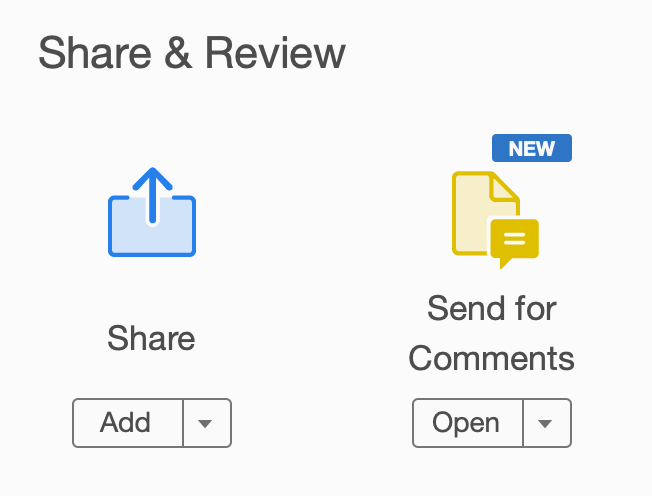
Getting Started
From any open document that you’d like to share, locate the “Tools” drop down on the start menu and scroll down to the Share & Review Section. From here, you’ll choose “Send for Comments.”
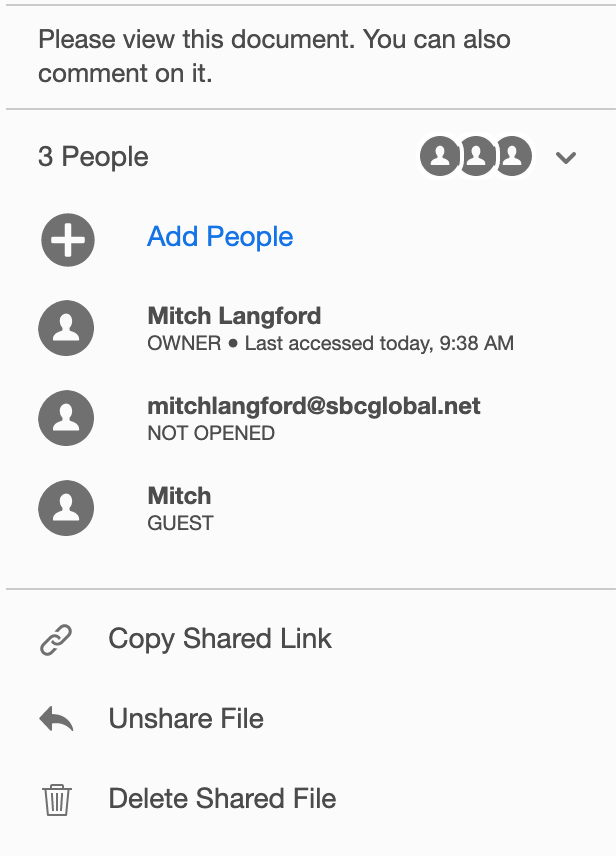
Add Collaborators
From the side menu, you can directly invite collaborators, copy and share a link to collaborate and monitor who has opened and received your document.

Sign In Or View As Guest
Your collaborators will receive an email inviting them to sign in to their Adobe accounts, or simply continue as a guests. As mentioned above the great part about this new feature is you are no longer required to download and create an Adobe Reader account.

Simple, Powerful Editing Tools
Your collaborators can use the easy-to-use editing tools to add comments, highlight text, underline text, strike through text or free draw on the document. Collaborators also have full control of color to write on light or dark backgrounds or distinguish their comments from other collaborators.

Easy, Organized Proofreading and Collaboration
The marked-up document appears on the left side of the page, while the right side is a summary of notes and comments that can be copied, deleted, resolved or even commented on.
As you can see this is a powerful free tool for all Adobe Creative Cloud users. While it doesn’t pack as many features and options as some of the paid document collaborating apps and programs, it does provide clear and organized tools and instructions. Plus, it is super easy to use.
Click here for more information on all of Adobe’s collaboration options. And, if you found this article helpful, please share it using the buttons below. Thanks!